
Measure contrast instead of trusting a mockup
Test actual foreground/background colours and document what contrast cannot prove.
45 minutes estimated—not learner-validated. Original learning materials are free; optional external AI access may require an account, credits or payment.
Start the editable activity →No account needed to begin. Explicit account saving and editable offline export are available in the workspace.
New here? Try the three-activity starter ↗
Why this matters
A generated interface image cannot establish accessibility. Extract or choose actual colour values and calculate contrast using the WCAG relative-luminance formula. Ordinary text generally needs 4.5:1 at WCAG AA; large text has a 3:1 threshold, but meeting a ratio alone does not address keyboard access, labels or screen-reader semantics.
Before you start
Materials are free. External tools may require an adult account, credits, regional eligibility or a paid plan. Check current terms before using them. Do not paste passwords, API keys, private messages or other people’s personal data. No model runs locally or downloads automatically on this platform.
Your illustrated field guide
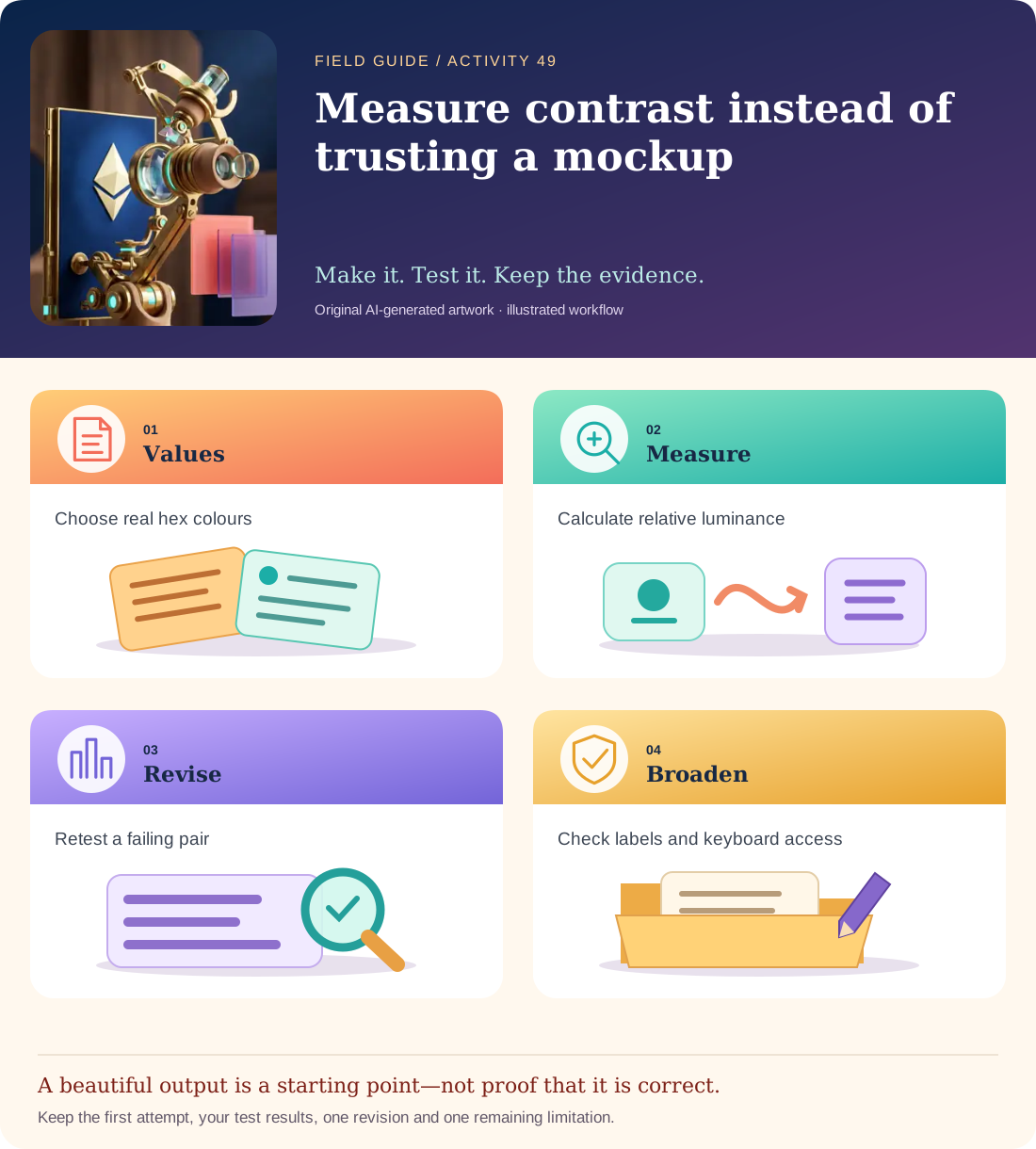
Conceptual illustration, not a provider screenshot. Artwork is AI-generated; instructional labels are authored text.
Start with fictional input
Test pairs: white #FFFFFF on burgundy #7C1F16; warm grey #84766A on cream #FDF7EE; gold #D4971B on cream #FDF7EE. Use the activity calculator to measure each pair, then choose colours for an actual editable heading and button.
Copy and adapt this prompt
Suggest an accessible-looking page concept, but label it a visual concept only. Separately propose exact hex foreground/background pairs for ordinary text. I will measure the actual contrast and test labels and keyboard access myself. Do not claim neon colours or a screenshot guarantee WCAG compliance.
Worked reference—not proof of correctness
White on the dark burgundy produces a strong text contrast. Gold on cream is much weaker and should not be assumed suitable for ordinary small text. Record the calculator’s numeric result and threshold rather than trusting colour names or visual excitement.
Five practical steps
Choose actual colours
Use the supplied pairs, not an image generator’s verbal claim.
Calculate each ratio
Run the local deterministic calculator and save the numeric results.
Apply a threshold
Use 4.5:1 for ordinary text and explain when a genuinely large-text threshold may apply.
Revise a failing pair
Darken the foreground or lighten the background, then measure again.
Inspect beyond contrast
Write separate checks for labels, focus visibility, keyboard order and information not conveyed by colour alone.
Test your result
- All three original colour pairs have measured ratios and ordinary-text pass/fail results.
- A revised failing pair is measured again instead of judged by eye.
- The final report explicitly separates contrast from complete accessibility compliance.
Mistakes to watch for
- Equating neon/high saturation with sufficient contrast.
- Claiming an image mockup proves screen-reader or keyboard accessibility.
Offline / no-key route
Use the formula/known examples in the handbook to annotate a design. Mark unmeasured pairs as unverified.
Reflect
Which accessibility problem would remain even after every colour pair passed?
Keep your notes, tests and self-review →Self-reported practice is not independent assessment or a qualification. Browse all 50 guides · Choose a tool